How to Reset Your Bluetooth Speaker and Fix Common Issues
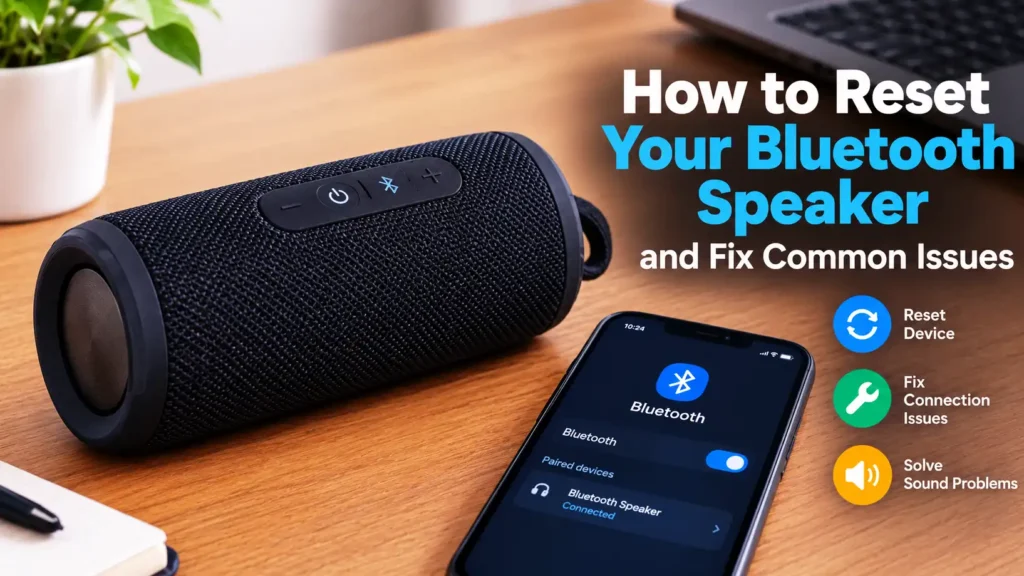
Bluetooth speaker reset and troubleshooting illustration for fixing connection and sound issues.
Bluetooth speakers make listening to music, podcasts, and movies more convenient. You can connect them to your smartphone, laptop, tablet, or other compatible devices without dealing with messy cables. However, like any electronic device, Bluetooth speakers can occasionally develop problems. Your speaker might refuse to connect, disconnect unexpectedly, produce distorted audio, or turn on without playing any sound.
These issues can be particularly annoying when you’re ready to relax with your favorite playlist. Sometimes, the problem comes from your phone’s Bluetooth settings rather than the speaker itself. In other cases, temporary software glitches, low battery power, or outdated pairing information can prevent everything from working properly.
The good news is that many Bluetooth speaker problems can be fixed at home. Restarting the device, removing an old Bluetooth connection, or performing a factory reset can often restore normal operation. You don’t necessarily need technical knowledge or expensive repair services to get started.
In this guide, you’ll learn how to reset your Bluetooth speaker, understand why resetting sometimes works, and troubleshoot common connection, charging, and sound problems. We’ll also discuss important precautions and practical maintenance tips to help keep your speaker working reliably.
What Is a Bluetooth Speaker Reset?
A Bluetooth speaker reset is a troubleshooting process that refreshes the device or restores certain settings to help resolve technical problems. Depending on the method you use, resetting can be as simple as turning the speaker off and on again or as thorough as restoring its original factory configuration. These options aren’t identical, so understanding the difference helps you choose the right solution without unnecessarily erasing your settings.
A basic restart typically preserves your existing Bluetooth pairings, while reconnecting your speaker involves removing its saved connection from your phone or computer and pairing it again. A factory reset goes further by clearing certain stored settings, which may include paired devices and customized configurations. The exact behavior depends on the speaker’s manufacturer and model, so it’s always wise to check the user manual before performing a full reset.
Why Do Bluetooth Speakers Need to Be Reset?
Bluetooth speakers can experience connection errors, software glitches, and other problems during everyday use. For example, your phone might recognize the speaker but fail to establish a connection, or the speaker might remain connected while producing no sound. Switching between multiple phones, laptops, and tablets can also create pairing confusion, especially when the speaker automatically reconnects to another previously paired device. Resetting or refreshing the connection can help eliminate these temporary issues.
However, resetting isn’t a universal solution. A speaker that won’t charge may have a damaged cable, a faulty charging port, or a worn-out battery. Distorted audio might result from excessive volume, a weak Bluetooth signal, or damaged hardware. That’s why it’s important to identify the symptoms before choosing a fix. Start with simple troubleshooting steps, then move to a factory reset if the problem persists.
How to Reset Your Bluetooth Speaker Step by Step
Resetting a Bluetooth speaker doesn’t have to be complicated, but the correct procedure depends on the problem you’re experiencing and the speaker’s model. Before attempting a factory reset, start with simpler solutions that won’t erase your saved settings. Make sure your speaker has enough battery power, disconnect unnecessary accessories, and keep your phone or computer nearby so you can test the connection afterward.
1. Restart Your Bluetooth Speaker
Turn off your speaker using its power button and wait approximately 30 seconds before turning it back on. This simple restart can resolve temporary software glitches, unresponsive controls, and minor audio problems without deleting your saved Bluetooth pairings. If the speaker doesn’t respond, connect it to a compatible charger and consult its manual for the manufacturer’s recommended restart procedure. Avoid repeatedly pressing buttons or forcing the device open, especially if it has a sealed battery.
2. Disconnect and Reconnect Bluetooth
If restarting doesn’t solve the problem, refresh the Bluetooth connection between your speaker and your phone or computer. Open your device’s Bluetooth settings, disconnect the speaker, and reconnect it after a few seconds. You can also temporarily switch Bluetooth off and back on to refresh the connection. This method is particularly useful when the speaker appears connected but audio doesn’t play, or when music keeps stopping unexpectedly.
3. Forget the Speaker and Pair It Again
Removing the speaker from your device’s saved Bluetooth list can resolve pairing errors that persist after a restart. On Android, open Settings, select Bluetooth or Connected devices, choose your speaker, and tap Forget or Unpair. On an iPhone, open Settings, select Bluetooth, tap the information icon beside the speaker, and choose Forget This Device. Windows users can open Settings, navigate to Bluetooth & devices, select the speaker, and choose Remove device. Once the old pairing has been removed, activate pairing mode on the speaker and connect it again.
4. Perform a Factory Reset
When basic troubleshooting fails, a factory reset may help restore your speaker’s normal operation. The procedure varies by model: some speakers require holding the power and Bluetooth buttons together, while others use a dedicated reset button or a combination involving volume controls. Check the manufacturer’s official instructions before proceeding, because the wrong button combination may activate a different function. Keep the speaker sufficiently charged, complete the reset as directed, and pair it with your phone again. Be aware that a factory reset may erase saved connections and customized settings.
5. Test the Speaker After Resetting
After restarting or resetting your speaker, play audio from a familiar song or video to check whether the problem has disappeared. Test the volume controls, Bluetooth connection, and audio playback at a moderate volume. If possible, connect another phone or laptop to determine whether the issue comes from the speaker or your original device. If the speaker still fails after a factory reset, the problem may involve its battery, charging port, internal components, or another hardware fault rather than its Bluetooth settings.
How to Fix Common Bluetooth Speaker Issues
1. Bluetooth Speaker Won’t Connect to Your Phone
If your Bluetooth speaker refuses to connect, first make sure Bluetooth is enabled on your phone and the speaker is in pairing mode. Keep both devices close together and check whether the speaker has automatically connected to another phone or laptop. If it remains unavailable, remove the old pairing from your phone’s Bluetooth settings, restart both devices, and try pairing again. Also, check whether the speaker has reached its limit for stored connections, as some models require you to clear an existing pairing before connecting a new device.
2. Bluetooth Speaker Keeps Disconnecting
Frequent disconnections can happen when your phone moves too far away, physical obstacles interfere with the signal, or nearby wireless devices create interference. Start by keeping your phone within a few meters of the speaker and moving away from potential sources of interference. Make sure the speaker has sufficient battery power, since some models may behave unpredictably when their batteries are nearly empty. If the connection still drops, forget the speaker on your phone and pair it again. Testing another phone can also help determine whether the issue comes from the speaker or your original device.
3. Bluetooth Speaker Is Connected but Has No Sound
Seeing a connected status doesn’t necessarily mean audio is being routed to the correct device. Check your phone’s media output settings and confirm that your Bluetooth speaker is selected instead of the phone’s built-in speakers or another connected accessory. Next, increase the volume on both devices and make sure the application you’re using isn’t muted. Try playing audio from a different app to rule out an application-specific problem. If there’s still no sound, disconnect and reconnect the speaker, then restart it before considering a factory reset.
4. Bluetooth Speaker Produces Distorted or Crackling Sound
Distorted audio can result from excessive volume, a weak Bluetooth connection, interference, or a problem with the speaker’s internal components. Lower the volume on both your phone and speaker, then play a different audio track to see whether the distortion continues. Move your phone closer and temporarily disconnect other Bluetooth accessories that might be interfering with playback. If the sound remains distorted, test the speaker with another device. Persistent crackling at moderate volume may indicate a damaged speaker driver or another hardware issue that a factory reset cannot repair.
5. Bluetooth Speaker Won’t Turn On or Charge
When a speaker won’t power on, check the charging cable, power adapter, and electrical outlet before assuming the device is broken. Try a compatible charger and inspect the charging port for visible debris or damage without inserting metal objects into it. Leave the speaker charging for the period recommended by its manufacturer, especially if the battery has been completely depleted. If the speaker still shows no sign of life, its battery or charging circuitry may need professional attention. Avoid attempting to reset a device that is physically damaged, unusually hot, swollen, or showing signs of battery leakage.
You can also learn how to use interactive features on WhatsApp with our guide to How to Use the WhatsApp Add Yours Sticker, which explains how to join conversations and share your own updates.
How to Reset Bluetooth Speakers from Popular Brands
The reset procedure for a Bluetooth speaker isn’t universal. Different manufacturers use different button combinations, indicator lights, and reset options, so a method that works for one speaker might do nothing on another. Before attempting a factory reset, identify your exact model and consult its official user manual. The following examples explain what to look for when resetting speakers from popular brands.
1. JBL Bluetooth Speakers
JBL speakers have different reset procedures depending on the model. Some models use combinations of the Volume Up (+) and Play buttons, while others require a different combination. For example, the JBL Flip 6 commonly uses Volume Up and Play together while the speaker is powered on. Check the instructions for your specific model before trying this method, because button combinations can vary across the JBL product range. After a successful reset, you may need to pair the speaker with your phone again.
2. Sony Bluetooth Speakers
Sony Bluetooth speakers may offer an initialization or reset procedure using the power button, volume controls, or a dedicated reset button, depending on the model. Some devices distinguish between restarting the speaker and initializing it, which can erase stored settings. Check Sony’s official support documentation for your exact model number before proceeding. After completing the recommended procedure, activate Bluetooth pairing mode and reconnect your phone or computer to test whether the original issue has been resolved.
3. Bose Bluetooth Speakers
Bose speakers have model-specific reset procedures, and some support products may use the Bose app for additional troubleshooting. Depending on the device, resetting may involve the power button or a particular combination of controls. Consult the official Bose support page for your speaker rather than relying on instructions intended for another product. If the speaker still fails to connect after resetting, check for available firmware updates and confirm that your phone’s Bluetooth settings are functioning correctly.
4. Anker Soundcore Speakers
Many Anker Soundcore speakers provide a reset or Bluetooth-clearing procedure through their physical controls, but the exact combination differs between models. Some use the Bluetooth button alongside another control, while others have different instructions. Refer to the model-specific manual to avoid accidentally activating another feature. If your speaker supports the Soundcore app, check whether it offers relevant device settings or firmware updates. Once the reset is complete, remove any old pairing from your phone if necessary and establish a fresh connection.
5. Ultimate Ears (UE) Speakers
Ultimate Ears speakers also have model-dependent reset procedures. Some models use a combination of the power button and volume controls, but you shouldn’t assume the same sequence works across the entire range. Check the official instructions for your specific speaker before attempting a factory reset. Once the process finishes, turn the speaker on, activate pairing mode if required, and reconnect your phone. If the speaker remains unresponsive, inspect its battery level and charging behavior before concluding that a reset has failed.
What to Do If Your Bluetooth Speaker Still Doesn’t Work
If your Bluetooth speaker continues to malfunction after resetting it, don’t assume it’s ready for the trash just yet. Some problems originate from the connected phone, outdated firmware, or physical components rather than the speaker’s Bluetooth settings. A factory reset can clear software-related issues, but it cannot repair a damaged battery, broken charging port, or defective speaker driver. Before spending money on a replacement, run a few additional checks to narrow down the cause.
1. Test the Speaker with Another Device
Connect your speaker to a different smartphone, tablet, or laptop and play some audio. If it works normally, the problem may lie with your original device’s Bluetooth settings, audio output selection, or operating system. If the speaker fails to connect or produces the same distorted sound across multiple devices, the speaker itself is a more likely source of the problem. This simple test helps you avoid performing unnecessary resets or changing settings that aren’t responsible for the issue.
2. Check for Firmware Updates
Some Bluetooth speakers receive firmware updates that improve connectivity, correct software bugs, or enhance compatibility with newer devices. Check the manufacturer’s official application or support website to see whether an update is available for your model. Follow the manufacturer’s instructions carefully and ensure the speaker has enough battery power before updating it. Not every speaker supports firmware updates, so don’t install unofficial firmware or attempt to force an update intended for another model.
3. Inspect the Battery and Charging Port
A weak battery can cause unexpected shutdowns, unstable playback, or difficulty powering on. Examine the charging cable and port for visible damage, and try a compatible charging adapter if the manufacturer recommends one. If the speaker only works while connected to a charger, its battery may have deteriorated. Stop using and charging the device if you notice swelling, leakage, burning smells, or excessive heat, and seek qualified service rather than attempting to open a sealed battery compartment yourself.
4. Contact the Manufacturer or a Repair Technician
If the speaker remains unresponsive after the recommended troubleshooting steps, contact the manufacturer’s support team or a qualified repair technician. Provide the exact model number, a description of the symptoms, and the steps you’ve already tried. Check the warranty terms before opening the speaker or paying for repairs, because unauthorized disassembly may affect coverage. For an older or inexpensive speaker, compare the repair estimate with the cost of a suitable replacement before deciding what to do next.
Tips to Prevent Future Bluetooth Speaker Problems
1. Keep Your Speaker’s Battery Charged Properly
Good charging habits can help maintain your speaker’s battery performance over time. Use a compatible charging cable and adapter, and follow the manufacturer’s recommendations for charging and storage. Avoid leaving the speaker exposed to excessive heat or storing it with a completely depleted battery for extended periods. If you won’t use it for several weeks, check the manual for the recommended storage charge level. These small habits can reduce battery-related problems and help your speaker remain reliable for longer.
2. Keep Bluetooth Pairings Under Control
Pairing your speaker with several phones, tablets, and computers can sometimes create confusion when devices try to reconnect automatically. Disconnect the speaker from devices you’re no longer using, and remove outdated pairings if connection problems begin. When connecting a new device, make sure the speaker is actually in pairing mode instead of already connected to another source. You don’t need to erase every saved connection regularly, but keeping your Bluetooth setup organized can make switching between devices much easier.
3. Keep Your Speaker Clean and Dry
Dust, moisture, and debris can affect buttons, charging ports, and other components. Clean the exterior with a soft, dry cloth and follow the manufacturer’s instructions for cleaning the charging port. If your speaker has a water-resistance rating, remember that it doesn’t automatically mean the device is waterproof under every condition. Avoid charging a wet speaker, even if it is designed to withstand splashes. Proper cleaning and careful handling can help prevent physical damage that a Bluetooth reset won’t fix.
4. Install Official Firmware Updates When Available
Firmware updates can improve compatibility, fix software bugs, and sometimes address Bluetooth connection problems. If your speaker supports updates through a companion app, check occasionally for official releases and follow the supplied installation instructions. Keep the speaker sufficiently charged and avoid interrupting the update process. There’s no need to install updates from unofficial websites or modify the speaker’s software unnecessarily. Using manufacturer-approved updates helps reduce the risk of introducing new problems while keeping supported features working as intended.
5. Store and Use Your Speaker in Suitable Conditions
Extreme temperatures, repeated drops, and exposure to excessive moisture can shorten a speaker’s lifespan. Keep it away from direct sunlight for long periods, avoid placing it near sources of intense heat, and use a protective case when carrying it in a bag. Maintain a reasonable distance between your phone and speaker to reduce connection interruptions, and avoid consistently playing audio at maximum volume if you notice distortion. A little care goes a long way toward preventing the problems that might otherwise send you searching for reset instructions again.
Conclusion
Resetting your Bluetooth speaker can be an effective way to solve common problems, including failed connections, unexpected disconnections, and audio playback issues. Start with a simple restart, refresh the Bluetooth connection, and remove outdated pairings before attempting a factory reset. These basic troubleshooting steps often resolve temporary glitches without requiring specialized tools or technical knowledge.
If the problem persists, test the speaker with another device, check its battery and charging components, and look for official firmware updates when available. Remember that factory reset procedures vary by manufacturer, so always follow the instructions for your exact model. Software troubleshooting can fix many issues, but damaged hardware may require professional repair or replacement.
Ultimately, the best approach is to identify the cause before trying increasingly drastic solutions. With proper charging habits, regular cleaning, and careful handling, you can reduce the likelihood of recurring problems and enjoy your Bluetooth speaker for longer.
FAQs
1. Will resetting a Bluetooth speaker delete saved devices?
A simple restart usually preserves saved Bluetooth pairings, while a factory reset may erase them and restore other settings to their defaults. The exact behavior depends on the speaker’s model and manufacturer.
2. How long does it take to reset a Bluetooth speaker?
A basic restart usually takes less than a minute, while a factory reset may take a little longer, depending on the device. Allow additional time to pair your speaker with your phone or computer again.
3. Why won’t my Bluetooth speaker reset?
The speaker may have insufficient battery power, unresponsive buttons, or a reset procedure that differs from the one you’re attempting. Check the official manual, charge the speaker if necessary, and follow the model-specific instructions.
4. Should I reset my Bluetooth speaker regularly?
No. You generally don’t need to reset your speaker unless you’re experiencing problems or want to clear its saved settings before giving it to someone else. Routine restarts are also unnecessary when the device works normally.
5. Can a factory reset fix a Bluetooth speaker with no sound?
It can help if the problem comes from a software glitch or incorrect settings, but it won’t repair damaged hardware. Check the audio output, volume levels, and connection first, then consider a factory reset if simpler solutions fail.