5 Gmail Tricks That Will Save You From Endless Notifications
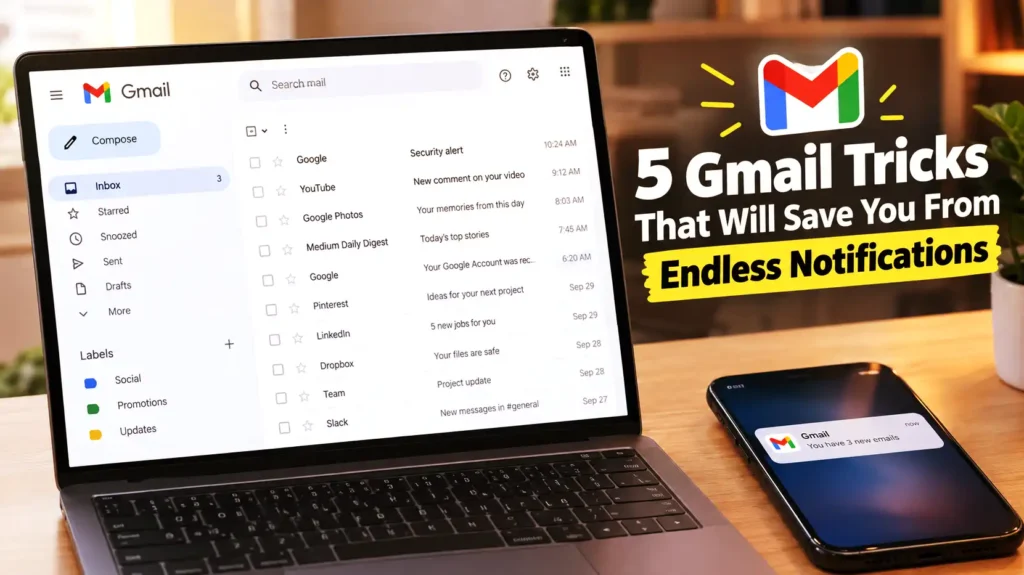
Gmail tricks illustration showing simple ways to reduce email notifications and keep your inbox organized.
Gmail promises to make email simpler, but honestly, sometimes it just feels like more work. Your phone buzzes nonstop—someone replies to an old thread, a newsletter shows up, a random store sends another promo, and some forgotten service decides now’s the time to ping you about an account you never use. One notification turns into five, then twenty, and suddenly your notification panel is just a wall of tasks you never asked for.
The worst part? Most of these emails aren’t actually urgent. You probably don’t need to know about that newsletter this second, and the dinner table doesn’t need to hear from your phone just because a group email keeps dragging on. But turning off all Gmail notifications isn’t practical either. Sometimes you really do need work updates, security alerts, password resets—the stuff that actually matters.
The good news is, Gmail has built-in tools to help you quiet the noise. You don’t have to treat every email the same. With a few tweaks, you can make sure only the important messages get your attention, while the rest chill in the background. Small changes add up. Suddenly, your inbox feels less like a siren and more like an assistant.
This guide covers five Gmail tricks that help cut down useless notifications. Some are quick fixes, others clean up your inbox little by little. Put them together, and Gmail stops acting like a hyperactive doorbell and starts working on your terms.
Why Gmail Notifications Spiral Out of Control
Here’s the thing about email: it’s not just the amount you get, it’s that Gmail dumps every kind of message—urgent, pointless, automated, and personal—into the same stream. Your boss emails, your package ships, Twitter pings, and ads blow in, all within minutes. Your phone doesn’t know which one really matters.
And you don’t need to wrangle each one by hand. Gmail’s got notification settings, filters, labels, unsubscribe links, and mute buttons, so you can keep your actual priorities straight. The trick is knowing which tools to use when.
1. Decide Which Gmail Emails Get to Interrupt You
Start by fixing your notification settings. If your phone chirps every single time Gmail gets a new message, you’re letting your inbox decide your life’s pace. That might make sense if every email is critical, but it’s just exhausting if you also get flooded with newsletters, coupons, and junk.
Gmail gives you better options than “all or nothing.” Tweak your notification settings to cut the noise before it ever reaches you. This one change makes a huge difference—now you’re not constantly cleaning up after notifications you never wanted.
Go for Important Mail, Not Every Ping
Maybe you still want Gmail to nudge you about emails, just not about everything. The important-mail notification option is your middle ground. Let Gmail highlight only the emails it thinks you actually care about. The rest sit patiently until you’re ready for them.
It’s perfect if you use a single Gmail account for both real communication and random subscriptions. You see everything in the inbox when you want, but your phone only buzzes when something actually matters. It’s like turning down the noise—but keeping the music you like.
How to Change Gmail Notifications on Desktop
On Gmail’s web version, hit Settings, then “See all settings,” and scroll to Desktop notifications. Pick from “new mail,” “important mail,” or just “no notifications.” Choose what suits you, save those changes, and you’re done.
Options might look a bit different depending on your setup, but the goal’s the same: don’t let your day be ruled by every incoming email. If work comes first, “important-mail only” keeps the real stuff up front without silencing everything.
How to Control Notifications on Android
On Android, open the Gmail app, tap the menu, hit Settings, choose the account, then notifications. Here you control what Gmail tries to alert you about. Android’s own notification settings add another layer of control too.
Check both. Gmail chooses what to notify you about; Android decides how loud. Gmail’s the person deciding whether to knock. Android controls the volume of the doorbell.
2. Use Gmail Filters to Automatically Handle Noisy Emails
Adjusting notifications is good, but Gmail filters actually prevent noisy emails from wrecking your headspace in the first place. Filters spot certain kinds of emails—promos, automated messages, anything you want—and do something with them. You set it once, Gmail handles them every time.
If you get daily sales emails, automatic system updates, or regular reports you want to keep but not see, a filter can auto-label, archive, mark as read, star, or even delete those emails. Teach Gmail what goes where, and the manual sorting basically disappears.
Create a Filter From an Existing Email
Fastest way: grab a message that bugs you, open the extra options, and select “Filter messages like these.” Gmail uses the details from that email (like the sender or subject) to start the rule.
You can get fancy and build a filter from the search options for more control. Before saving, check that your search really finds the right emails. Too broad? You could miss something important.
Handy Filter Actions
You’ve got options: auto-archive routine stuff, label newsletters, mark noisy emails as read, or star certain messages for later. Or, when you’re sure, auto-delete the nonsense.
Start careful. If you’re not totally sure what the filter will catch, just label or archive for now. Get confident, then get stricter. The goal’s less noise, not deleting something valuable forever.
If you want to chat on WhatsApp without creating an account, check out How to Chat on WhatsApp Without an Account Using Guest Chat to learn how Guest Chat works and what you need to know before using it.
3. Unsubscribe From Newsletters You Never Read
The ultimate hack? Stop useless emails from showing up at all. Newsletters fill your inbox because you signed up once for a discount or freebie, then forgot. Deleting them every time is just Whac-A-Mole. If you never read them, unsubscribe and be free.
Deleting each newsletter after it arrives doesn’t solve the underlying problem. You’re simply playing inbox whack-a-mole. If you never read the messages anymore, using Gmail’s unsubscribe option is usually a more sensible approach. It removes the source of the repeated messages instead of making you deal with them individually.
Use Gmail’s Unsubscribe Option
If Gmail spots a real newsletter or promo sender, there’s usually an Unsubscribe button by the sender’s name up top. Use that and you’re on your way out—though sometimes you need to confirm again on their website.
It might not stop instantly—some lists lag before cleaning you out. Still, unsubscribing works way better than deleting the same messages every week.
Clean Up All Subscriptions in One Place
Some Gmail accounts now have a “Manage subscriptions” feature to help you review and cut old mailing lists all in one spot. If you see it, great—makes cleanup so much easier.
Not everyone has it yet. If not, just hunting down emails with the Unsubscribe button still gets the job done. Spending a few minutes clearing these out really cuts the clutter and the buzzing.
4. Mute Conversations That Refuse to Stay Quiet
Sometimes the noise is just a “zombie conversation” that won’t quit. You get a group email, then back-and-forth replies, and your phone keeps nagging you about every update—even though you stopped caring hours ago. Mute is your friend here.
Mute tells Gmail to pull future replies to that convo out of your inbox and quietly archive them. You don’t lose them, you just stop getting interrupted for every “thanks!” or “got it!” reply.
When To Use Mute
Mute’s perfect when you’re done with a thread but don’t want to delete it. Maybe coworkers are planning something you already finished, a group is rehashing old details, or people can’t stop saying “great job.” Mute lets you walk away without actually leaving the thread.
On the web, select the conversation, hit More, and pick Mute. On Android, long-press, tap More, and then Mute. Heads up: if you’re addressed directly in a muted conversation, Gmail might still pop it back in your inbox.
How To Find Muted Conversations
Muted doesn’t mean lost. Just search for is:muted to find them all—no more digging through the archives.
Honestly, once you get used to Mute, you’ll wonder why you didn’t use it sooner. If that conversation comes back around, you can always unmute it, no harm done.
5. Use Gmail Search to Find and Control Notification Triggers
The search bar in Gmail is actually a powerhouse. Most people just type keywords, but Gmail’s got special search tricks—“operators”—that let you pull up all emails by sender, subject, unread status, date, or more. Learn a few, and you’ll tame even the busiest inbox.
Try from:someone@email.com to see all emails from one sender, or is:unread to list unread stuff. Dig up muted threads with is:muted. Chain them together for super-specific searches—like all newsletters from a store in the past month. This is the way to see what’s really clogging your notifications before you start deleting or filtering anything.
Search Tricks Worth Knowing
Some power moves: from:address for a sender, subject:keyword for subject lines, has:attachment for messages with a file. after:2024/01/01 and before:2024/06/01 narrow it to dates.
Combine these to laser in on, say, unread newsletters with attachments from February. Once you spot inbox troublemakers, you get to decide—unsubscribe, filter, archive, or just leave them. Gmail search is like a map of your email world.
Build a Routine That Actually Works
The real magic happens when you combine these Gmail controls. Lower the volume on notifications, set up filters for regular clutter, unsubscribe from things you never read, and mute conversations that just keep buzzing. Now your inbox sorts itself, and you deal with what matters.
Don’t aim for “zero inbox” perfection. That’s just another job you didn’t want. Aim for an inbox where the important stuff actually stands out—and the rest of the noise keeps to itself. Get Gmail to do more sorting, and you spend less time in your inbox reacting, more time doing actual work.
Conclusion
Gmail notifications can become overwhelming surprisingly quickly, especially when one account handles everything from work conversations and account alerts to newsletters, promotions, and automated updates. You don’t necessarily need to disable notifications completely. A better approach is to decide which messages deserve your immediate attention and which ones can wait quietly in the background.
Start with Gmail’s notification settings, then use filters to automatically handle repetitive messages. Unsubscribe from newsletters you no longer read, mute conversations that generate endless replies, and use Gmail’s search operators to identify patterns in your inbox. Each trick tackles a different source of notification overload, so combining them can make a much bigger difference than using just one.
Your inbox doesn’t have to behave like a doorbell that someone keeps pressing all day. With a few minutes of setup, Gmail can become considerably quieter while still keeping important messages within reach. Once you’ve found the right balance, you can check your inbox when you choose instead of feeling like your inbox is constantly checking in on you.
FAQs
1. Can I turn off Gmail notifications completely?
Yes! You can shut off all Gmail notifications—both in Gmail’s own settings and through your phone or computer’s notification controls. If you don’t need urgent alerts, turn them off and check your email when you feel like it.
2. Can Gmail notify me only about important emails?
Yep. Gmail has an “important mail” option, so only the good stuff pings you—no more constant alerts for newsletters or promos.
3. Will Gmail filters delete my emails automatically?
Only if you set a filter to delete things. Otherwise, filters can label, archive, star, or just mark emails as read. If you’re testing filters, start with label or archive to stay safe—you can always adjust later.
4. Does muting an email delete the conversation?
Nope. Muting just sends future replies out of your inbox into your archive. You can always find muted emails with is:muted, so nothing gets lost.
5. What is the fastest way to stop newsletter notifications?
Hit Unsubscribe in Gmail when you see it, or use the subscription manager if it’s available. Unsubscribing beats deleting every time, though it might take a few days for the emails to stop.