How to Set Screen Time Limits With Cat Gatekeeper on Chrome
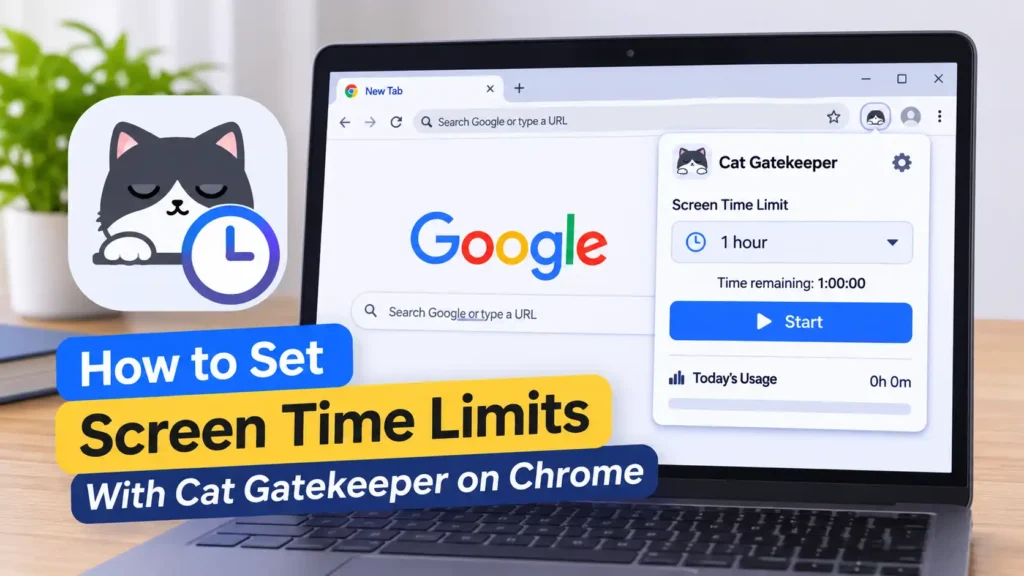
Cat Gatekeeper Chrome extension screen time limit illustration for better browsing habits and productivity.
If you’ve been looking for a simple way to control your browsing habits, Cat Gatekeeper might be worth trying. This quirky Chrome extension takes a different approach to screen time management. Instead of showing another boring notification or warning, it sends an adorable cat onto your screen when you’ve reached your usage limit. The cat essentially blocks your browsing until your scheduled break is over.
What makes Cat Gatekeeper interesting is its straightforward approach. You can choose which websites it monitors, decide how long you want to browse, and customize how long your break should last. This makes it useful for people who regularly lose track of time while watching videos, checking social media, or browsing their favorite websites.
In this guide, we’ll explain how Cat Gatekeeper works and walk you through setting screen time limits on Chrome. You’ll also learn how to install the extension, customize its settings, choose websites to monitor, and make the most of its break reminders without disrupting your everyday browsing routine.
What Is Cat Gatekeeper on Chrome?
Cat Gatekeeper is a browser extension designed to help users manage their time on social media and other frequently visited websites. Its main idea is pretty simple: you set a usage limit, browse normally, and wait for a cat to appear when your allowed time runs out. Rather than relying on notifications that are easy to ignore, the extension places a cat animation over the active webpage to encourage you to stop and take a break.
The extension supports several popular platforms, including YouTube, X (Twitter), Facebook, Reddit, Threads, and Bluesky. You can customize the monitored websites and adjust your usage limit and break duration through its settings menu. It is particularly useful for people who want a lightweight screen time management tool without installing a complicated productivity application.
How Does the Cat Gatekeeper Extension Work?
Cat Gatekeeper monitors your activity on selected websites and counts the time you actively spend viewing them. Once you reach your configured limit, a cat appears on the screen and starts a break countdown. During this period, the cat overlay makes it difficult to continue interacting with the monitored webpage, giving you a moment to step away from your browser.
The timer also has some useful behavior worth understanding. For example, opening the same website in multiple tabs does not necessarily mean each tab receives a separate allowance. The extension combines the tracked time for the same service. If you switch tabs or applications, tracking can resume when you return within the supported time window. This makes its tracking behavior more practical than a simple timer that keeps running regardless of what you’re doing.
Why Should You Set Screen Time Limits With Cat Gatekeeper?
Setting screen time limits isn’t just about spending fewer minutes online. It’s also about having more control over how you use your computer throughout the day. Social media platforms, video-sharing websites, and online communities can easily become distractions, especially when you’re supposed to be working, studying, or completing something important.
Cat Gatekeeper offers a playful alternative to traditional screen time reminders. Instead of displaying a notification that disappears after a few seconds, it uses a visual interruption that encourages you to stop browsing. You can also choose your preferred break duration, making it easier to build healthier browsing habits without completely avoiding the websites you enjoy.
Reduce Endless Scrolling
One of the biggest reasons people struggle with screen time is endless scrolling. Social media feeds constantly provide new posts, videos, recommendations, and discussions. Even when you initially plan to spend only five minutes online, there’s always something else waiting to grab your attention.
With Cat Gatekeeper, you can establish a clear limit before opening those websites. Once the timer runs out, the cat appears and reminds you that it’s time to stop. It’s a small change, but having an interruption at the right moment can help prevent a quick browsing session from turning into an hour of mindless scrolling.
Build Better Browsing Habits
Developing healthier browsing habits doesn’t mean you need to stop using social media altogether. Sometimes, you simply need a better way to manage your time. By setting consistent usage limits and taking short breaks, you can gradually become more aware of how much time you spend online.
Cat Gatekeeper makes this process easier by introducing a simple routine. Browse for your chosen duration, take a break when the cat appears, and return when the countdown finishes. Over time, this routine can help you become more intentional about your online activities instead of automatically opening your favorite websites whenever you have a spare moment.
How to Install Cat Gatekeeper on Google Chrome
Before setting up screen time limits, you need to install Cat Gatekeeper in your Chrome browser. The process is relatively straightforward and doesn’t require advanced technical knowledge. You can get the extension through the Chrome Web Store, just like other browser extensions. Make sure you’re using Google Chrome or a compatible Chromium-based browser so the extension can work properly.
1. Open the Chrome Web Store
Start by opening Google Chrome on your computer and visiting the Chrome Web Store. Use its search bar to look for Cat Gatekeeper. Check the extension name carefully so you don’t accidentally install an unrelated tool with a similar name.
2. Add Cat Gatekeeper to Chrome
Once you’ve found the correct extension, open its listing and review the available information. Click the Add to Chrome button, then confirm the installation when Chrome displays its permission prompt. Wait a moment while the browser downloads and installs the extension.
3. Pin the Extension to Your Toolbar
After installation, click the Extensions icon (the puzzle-piece symbol) near the top-right corner of Chrome. Find Cat Gatekeeper in the list and click the pin icon beside it. This makes the extension easier to access whenever you want to check your screen time settings or adjust your browsing limits.
How to Set Up Cat Gatekeeper for the First Time
After installing the extension, the next step is configuring its basic settings. You don’t need to change everything immediately. Start with a simple setup that matches your everyday browsing habits, then adjust the limits once you understand how the extension behaves.
1. Open Cat Gatekeeper Settings
Click the Cat Gatekeeper icon in your Chrome toolbar to access its interface. Look for the available settings or configuration options where you can manage monitored websites, usage limits, and break durations. Spend a moment exploring the interface before making changes so you know where each option is located.
2. Choose Your Preferred Screen Time Limit
Set a browsing duration that feels realistic for your daily routine. For example, you could start with a 30-minute limit if you frequently spend too much time watching YouTube or browsing social media. The goal isn’t to make browsing uncomfortable but to establish a reasonable boundary that reminds you when it’s time to step away.
3. Configure Your Break Duration
Next, choose how long you want your break to last after reaching the usage limit. A five- or ten-minute break can be a good starting point, especially if you’re using the extension to reduce unnecessary browsing. You can always increase the duration later if you want longer breaks between browsing sessions.
How to Choose Websites That Cat Gatekeeper Should Monitor
One of the most useful parts of Cat Gatekeeper is its ability to focus on selected websites instead of treating every webpage as a distraction. This means you can continue using Chrome for work, research, online banking, or other important activities without necessarily triggering the same restrictions.
Think about the websites where you usually lose track of time. For some people, it’s YouTube. For others, it’s Reddit, Facebook, or X. Selecting the right websites makes your screen time limits more meaningful because the extension focuses on your actual browsing habits rather than interrupting everything you do online.
Select Social Media Websites
Start with social media platforms that frequently take up your free time. Depending on the available options, you can select services such as Facebook, X, Threads, and Bluesky. These platforms are common sources of endless scrolling because their feeds continuously provide new content.
Add Video and Discussion Platforms
YouTube and Reddit are also worth considering if you regularly spend longer than intended on them. YouTube’s recommendation system can make one video turn into an entire playlist, while Reddit discussions can keep you browsing through different communities for hours.
Review Your Website Selection
After selecting your preferred websites, review the list to make sure it reflects your actual browsing habits. Avoid adding every website simply because it’s available. If you use a particular platform for work or education, consider whether restricting it would interfere with your daily tasks. A focused selection usually makes screen time management much easier.
A reliable internet connection starts with choosing the right provider and plan. These 10 Smart Tips for Subscribing to Home Internet for Better Connectivity can help you make a smarter decision and enjoy a more stable connection at home.
How to Customize Screen Time Limits in Cat Gatekeeper
Once you’ve selected the websites you want to monitor, it’s time to fine-tune your screen time settings. The default configuration might be enough for casual browsing, but customizing the limits can make Cat Gatekeeper more useful for your daily routine. For example, you might want shorter sessions for social media but allow yourself more time to watch educational videos or read online discussions.
The best approach is to start with manageable limits rather than making your browsing restrictions too strict. If you normally spend two hours scrolling through social media, suddenly reducing that time to ten minutes might feel frustrating. Instead, gradually lower your limits until you find a balance that helps you stay productive without making your browsing experience unnecessarily restrictive.
1. Set a Daily Browsing Limit
Choose a time allowance that reflects how long you want to spend on your selected websites. If you frequently get distracted by social media, try setting a 20- or 30-minute limit as an initial experiment. Pay attention to how often you reach that limit and adjust it based on your actual needs. The important thing is to create a boundary that encourages more intentional browsing.
2. Adjust the Break Timer
The break timer determines how long you need to wait after reaching your usage limit. A five-minute break might be sufficient for casual browsing, while ten or fifteen minutes could be more appropriate if you’re trying to reduce prolonged screen sessions. Use the break to stretch, drink some water, or focus on another activity instead of immediately switching to a different distracting website.
3. Balance Screen Time With Your Daily Activities
Your screen time settings should support your daily schedule rather than interfere with it. If you use Chrome for work, studying, or research, consider choosing limits that leave enough room for those activities. You can also adjust your browsing habits during particularly busy days. A flexible approach is generally more sustainable than imposing restrictions that are difficult to follow consistently.
How to Use the Cat Break Reminder Effectively
The cat overlay is arguably the most recognizable part of Cat Gatekeeper. Instead of relying entirely on traditional notifications, the extension uses an animated cat to interrupt your browsing when your allowed time runs out. It’s a playful idea, but it also serves a practical purpose: making your screen time limits harder to overlook.
When the cat appears, treat it as a reminder to pause rather than an inconvenience you need to get around. Take a moment to consider what you were doing before the interruption. Were you watching videos without a particular reason? Were you repeatedly refreshing a social media feed? Recognizing these habits can help you make better decisions about how you spend your time online.
Take a Proper Break When the Cat Appears
Rather than immediately trying to return to the website, use the break period to do something away from your screen. Stand up, stretch your body, refill your drink, or take a short walk around the room. Even a small change in activity can make your browsing sessions feel less continuous and help you avoid spending hours sitting in front of your computer.
Avoid Treating the Reminder as Just Another Notification
It’s easy to develop the habit of dismissing notifications without thinking about them. That’s why you should take the cat reminder seriously. Give yourself a moment to recognize that you’ve reached your planned limit and decide whether continuing to browse is genuinely necessary. If you’re trying to build better digital habits, respecting the break timer is just as important as configuring it correctly.
Tips for Getting Better Results With Cat Gatekeeper
Installing an extension and setting a timer won’t automatically transform your browsing habits. The real difference comes from how consistently you use the tool. Cat Gatekeeper works best when you combine its screen time restrictions with a few practical changes to your daily computer routine.
You don’t have to make dramatic adjustments overnight. Start by identifying your biggest distractions, setting reasonable limits, and paying attention to how often you exceed your intended browsing time. As you become more comfortable with the system, you can gradually refine your settings and develop a routine that feels natural.
Start With Your Biggest Distractions
Don’t try to control every website at once. Focus on the platforms that consume most of your free time, such as YouTube, Facebook, or Reddit. Once you become comfortable managing those websites, you can consider expanding your monitored list. This makes the transition easier and prevents unnecessary restrictions from affecting websites you genuinely need.
Create a Consistent Browsing Routine
Try setting specific periods for entertainment and casual browsing instead of opening social media whenever you have a spare moment. For example, you could reserve a short session after finishing your work or studying. Having a predictable schedule makes it easier to recognize when you’re browsing intentionally and when you’re simply looking for something to distract yourself.
Use Your Breaks for Offline Activities
A screen time limit becomes much more useful when you have something else to do during your breaks. Reading a physical book, organizing your desk, preparing a snack, or doing a few simple stretches can help you step away from the screen. You don’t need an elaborate productivity routine. Sometimes, the best break is simply doing something that doesn’t involve another browser tab.
Common Cat Gatekeeper Problems and How to Fix Them
Like other Chrome extensions, Cat Gatekeeper may occasionally behave differently than expected. You might notice that the timer doesn’t start, the cat reminder doesn’t appear, or certain websites aren’t being monitored correctly. These issues don’t necessarily mean the extension is broken. Sometimes, they happen because of browser permissions, incorrect settings, or temporary extension conflicts.
Before looking for complicated solutions, check whether Cat Gatekeeper is enabled and whether you’ve selected the correct websites. Also, make sure you’re using a supported version of Chrome. Working through these basic checks can help you identify common problems without wasting time reinstalling the extension.
1. Cat Gatekeeper Doesn’t Track Website Activity
If the timer doesn’t seem to count your browsing time, start by checking whether the website you’re visiting is included in the monitored list. The extension won’t necessarily track every website automatically. Also, check whether Chrome has granted the permissions required for Cat Gatekeeper to access the selected websites.
2. The Cat Reminder Doesn’t Appear
If you’ve reached your expected screen time limit but the cat doesn’t appear, check whether the timer is configured correctly. You should also refresh the affected webpage and verify that the extension is still enabled. If the problem continues, try restarting Chrome to see whether the extension resumes working normally.
3. Screen Time Settings Don’t Seem to Save
Sometimes, configuration changes may not take effect immediately. Open the extension again and check whether your selected limits and monitored websites are still displayed correctly. If necessary, change the settings again and restart the browser. Avoid repeatedly changing multiple options at once because that can make it harder to identify which setting is causing the problem.
4. Cat Gatekeeper Conflicts With Other Extensions
Other Chrome extensions can occasionally interfere with website behavior, especially tools that modify page content, block scripts, or manage browsing activity. If Cat Gatekeeper stops working after installing another extension, temporarily disable the recently added extension and test again. This can help determine whether a browser extension conflict is responsible.
Is Cat Gatekeeper Better Than Other Screen Time Extensions?
Cat Gatekeeper has a different appeal compared with traditional productivity and website-blocking extensions. Its biggest advantage is its playful cat-based reminder, which makes screen time management feel less like a strict digital restriction. Rather than presenting productivity statistics or complicated dashboards, it focuses on helping you recognize when you’ve spent enough time on selected websites.
However, that doesn’t automatically make it the best choice for everyone. Some users may prefer extensions with detailed activity reports, scheduled website blocking, or more advanced productivity controls. Your ideal option depends on whether you simply want a reminder to take breaks or need a stronger system to manage your browsing habits.
Cat Gatekeeper for Simple Screen Time Management
If you want a lightweight solution that encourages you to take regular breaks, Cat Gatekeeper is an interesting option. Its straightforward concept makes it suitable for casual users who don’t need detailed reports or complicated productivity features. The cat reminder also adds a little personality to an otherwise ordinary screen time management routine.
Traditional Website Blockers for Stronger Restrictions
Website blockers may be more appropriate if your main goal is to prevent access to distracting platforms altogether. Depending on the extension, you can create blocking schedules, restrict specific domains, and establish more rigid browsing rules. These features can be useful when visual reminders aren’t enough to keep you away from distracting websites.
Choose an Extension That Matches Your Needs
Think about what you actually want to achieve before choosing a screen time tool. If you want gentle reminders and a fun way to control browsing sessions, Cat Gatekeeper may be sufficient. However, if you need detailed usage statistics or stricter restrictions, a more advanced productivity extension could be a better fit. The most useful tool is ultimately the one you’ll consistently use.
Conclusion
Cat Gatekeeper offers a simple and playful way to manage screen time on Google Chrome. By monitoring selected websites, setting browsing limits, and displaying a cat reminder when your allowance runs out, it encourages you to take regular breaks instead of spending too much time scrolling through social media or watching videos. Its straightforward approach makes it an interesting option for anyone who wants to develop healthier browsing habits.
Getting started doesn’t require a complicated setup. Install the extension, choose the websites you want to monitor, configure your usage limits, and select a break duration that suits your routine. You can gradually adjust these settings as you become more comfortable managing your time online.
Ultimately, remember that Cat Gatekeeper is a tool to support better habits, not a replacement for self-discipline. Use its reminders as an opportunity to step away from your screen, focus on other activities, and make your browsing sessions more intentional.
FAQs
1. Is Cat Gatekeeper Free to Use on Chrome?
Cat Gatekeeper is available as a Chrome browser extension, but you should check its Chrome Web Store listing for the latest information about pricing, available features, and any usage restrictions. This will help you understand whether its current version offers everything you need without additional costs.
2. Which Websites Can Cat Gatekeeper Monitor?
Cat Gatekeeper supports several popular websites and platforms, including YouTube, X (Twitter), Facebook, Reddit, Threads, and Bluesky. The available website options allow you to focus on services that frequently distract you during work, studying, or everyday browsing.
3. Can I Customize the Screen Time Limit in Cat Gatekeeper?
Yes, Cat Gatekeeper provides settings for managing browsing time and break duration. You can adjust these options according to your preferences and choose a reasonable allowance for the websites you want to monitor.
4. Does Cat Gatekeeper Block an Entire Website When the Timer Runs Out?
When you reach your configured limit, Cat Gatekeeper displays a cat overlay that interrupts your browsing experience during the break period. Its purpose is to discourage continued browsing and remind you to take a break rather than function like a traditional network-level website blocker.
5. Can I Use Cat Gatekeeper on Browsers Other Than Google Chrome?
Cat Gatekeeper is designed as a browser extension for Chrome. It may also work on compatible Chromium-based browsers if they support the extension and its required features. However, compatibility isn’t guaranteed, so check the extension’s listing before installing it on another browser.