How to Use the WhatsApp Add Yours Sticker
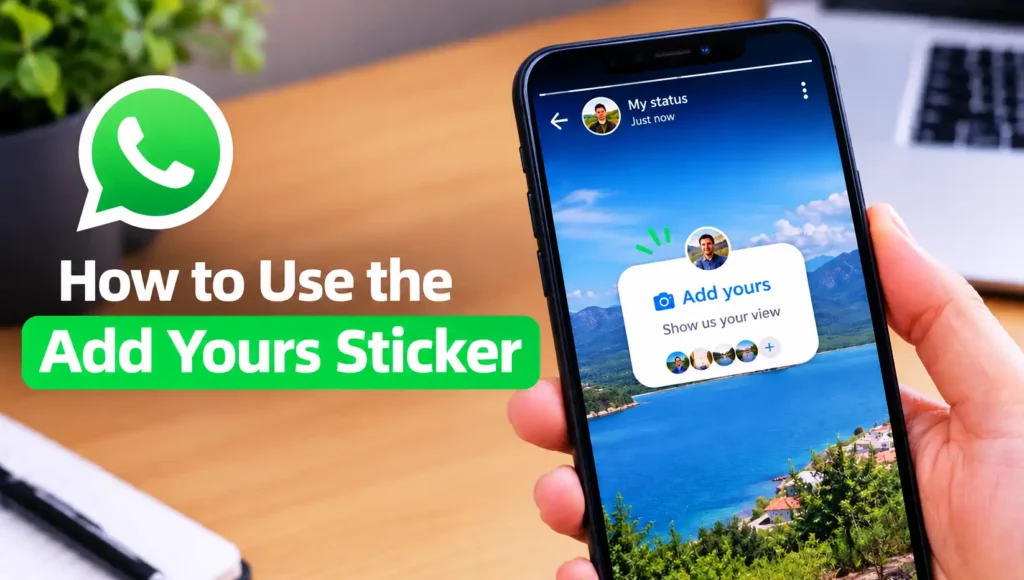
WhatsApp Add Yours Sticker on Status feature illustration for interactive status updates.
Imagine posting a picture of your favorite food and inviting your friends to share theirs. One friend might upload homemade noodles, another might show their favorite street food, and someone else might recommend a restaurant. Instead of sending the same question to everyone individually, you can use a prompt to encourage people to join in.
If you’ve never tried this feature, you might be unsure where to find it or how it differs from the regular stickers available in WhatsApp. You may also wonder whether you can respond to another person’s prompt, what content you can share, or why the sticker doesn’t appear in your app.
This guide will explain what the WhatsApp Add Yours sticker is, why it’s useful, and how it works before moving on to the practical tutorial. You’ll also learn about preparation, creative ideas, privacy settings, and solutions to common problems so you can use the feature more confidently.
What Is the WhatsApp Add Yours Sticker?
The WhatsApp Add Yours sticker is an interactive feature associated with Status updates that lets users invite others to contribute content around a shared topic. For example, you could start a prompt asking people to share pictures of their pets, favorite meals, weekend activities, or recent travel experiences. People who view your Status may be able to join the prompt by sharing their own photos or videos through the available participation option.
Unlike ordinary stickers, which mainly decorate a photo or video, the Add Yours sticker is designed to encourage participation. It can turn a simple Status update into a shared activity where different people contribute their own perspectives. The exact interface and availability may vary depending on your WhatsApp version and account, so some users might not see the same options.
Why Should You Use the Add Yours Sticker?
The main benefit of the Add Yours sticker is that it makes WhatsApp Status more interactive. Instead of simply showing people what you’re doing, you can invite them to share their own experiences, opinions, or interests. This can be a fun way to discover new music, exchange food recommendations, share hobbies, or start casual conversations without messaging every contact separately.
It can also help when you don’t know what to post. You can choose a simple, relatable topic and let other people contribute their own content. A prompt about favorite movies, for instance, could give you ideas for your next movie night. A prompt about pets might introduce you to adorable animals belonging to friends you rarely get to talk to. You don’t need professional photos or elaborate preparation; an interesting topic is often enough to get people involved.
How Does the Add Yours Sticker Work on WhatsApp?
The feature works through WhatsApp Status. When the Add Yours sticker is available, you can create a Status, add the sticker, and provide a prompt that encourages viewers to share something related to the topic. People who see your update can use the available interaction option to contribute their own content, creating a series of related Status posts.
Each participant creates their own contribution rather than simply reposting your original photo or video. However, participation is optional, and the exact process can differ across app versions and accounts. Your Status privacy settings are also important because they determine who can see your updates. Before sharing anything personal, check your audience settings and make sure you’re comfortable with the people who can view your content.
How to Use the WhatsApp Add Yours Sticker
Using the WhatsApp Add Yours sticker should be straightforward once you know where to look. The general process involves opening the Status editor, choosing suitable content, finding the interactive sticker, writing a prompt, and publishing your update. However, the exact steps may vary depending on your WhatsApp version and whether the feature has been enabled for your account.
Before starting, make sure you have a photo or video ready to share. Choose something that fits your intended prompt, whether it’s a picture of your pet, a meal you enjoyed, or a moment from your daily routine. If the Add Yours sticker isn’t available in your Status editor, don’t worry—we’ll cover possible reasons and troubleshooting options in a later section.
Step 1: Open WhatsApp Status
Open WhatsApp on your phone and navigate to the Updates tab, where Status updates are displayed. On Android, tap the option to create a new Status, usually represented by a camera or pencil icon near the Status section. On iPhone, open Updates and use the available button to create a Status. The interface may differ slightly depending on your device and app version.
Step 2: Choose a Photo or Video
Select a photo or video from your gallery, or capture something new using the camera available in the Status editor. Choose content that matches the topic you want people to respond to. For example, if you want your friends to share their favorite foods, you could start with a picture of your lunch. You can also use a text-based Status if your version supports adding the interactive sticker to that type of update.
Step 3: Find the Add Yours Sticker
Once your content is ready, look for the sticker icon in the Status editing screen. Tap it to open the available sticker options and check whether Add Yours appears in the list. If you find it, select it to add the interactive prompt to your Status. Keep in mind that the sticker may not be available on every account, so don’t assume you’re missing something obvious if it isn’t listed.
Step 4: Create Your Add Yours Prompt
Enter a short prompt that clearly explains what you want other people to share. For example, you could write “Show me your pets,” “Your favorite comfort food,” or “What are you listening to today?” A good prompt is specific enough to inspire a response but broad enough to let people participate in their own way. Keep the wording short and easy to understand so viewers can quickly decide whether they want to join.
Step 5: Position the Sticker and Review Your Status
After creating the prompt, position the sticker where it can be seen without covering the most important part of your photo or video. If the editor allows it, adjust the sticker’s size or placement to keep your Status looking neat. Review the entire update before publishing, checking that the prompt is readable and the content is appropriate for your intended audience.
Step 6: Publish Your Status
When everything looks right, tap the send button to publish your Status. Your update will become visible to the audience allowed by your Status privacy settings. People who can view the post may be able to interact with the Add Yours prompt if the feature is available to them. You can then check your Status viewers to see who has viewed your update, although viewing a post doesn’t necessarily mean someone has participated.
If you’re having trouble accessing your TikTok profile, check out 7 Ways to Recover Your TikTok Account After It’s Deleted, Suspended, or Banned for practical steps to recover your account and regain access.
Tips for Creating Engaging Add Yours Prompts
A good Add Yours prompt should be easy to understand and fun to answer. Instead of using a vague request like “Post something,” try a more specific idea such as “Show your favorite snack” or “Share a picture of your pet.” Clear prompts help people know what to contribute without having to guess what you mean. Choosing familiar topics can also make participation easier for friends with different interests.
Timing and presentation can make a difference, too. Use a clear background image, keep the sticker readable, and avoid covering important details in your photo or video. You can experiment with different themes, such as daily routines, music recommendations, travel memories, or favorite gadgets, to see what your contacts enjoy. Most importantly, keep the activity casual. The goal is to encourage people to participate because they want to, not because they feel pressured to share something.
How to Fix the Add Yours Sticker Not Showing Up
Start by opening the Google Play Store on Android or the Apple App Store on iPhone and checking whether a WhatsApp update is available. Install any official update, reopen WhatsApp, and look for the sticker in the Status editor again. If your app is already up to date, close and reopen it, then check whether the option appears. On Android, you can also clear WhatsApp’s cache through your phone’s app settings if necessary, without selecting the option to clear app data.
If the sticker is still missing, check whether other interactive features are available and ask a friend whether they can see the Add Yours option on their account. This can help you determine whether the issue is specific to your account rather than your device. Avoid downloading unofficial WhatsApp versions or modified APK files just to access the feature, since they can put your account and personal information at risk. If the feature hasn’t been rolled out to you yet, you may simply need to wait until WhatsApp makes it available.
Conclusion
The WhatsApp Add Yours sticker is a useful way to make Status updates more interactive by inviting friends and family to contribute their own photos or videos around a shared topic. Whether you want to exchange food recommendations, show off your pets, share hobbies, or start a fun daily challenge, a simple prompt can turn an ordinary update into a shared activity.
To get started, open WhatsApp Status, prepare your content, look for the Add Yours sticker, and create a prompt that people can easily understand. Remember that the feature may not be available to every account, so keep your app updated and check the Status editor if you can’t find it. You should also review your privacy settings before publishing anything personal.
Ultimately, the best way to use the Add Yours sticker is to keep things creative, simple, and enjoyable. Choose topics that suit your audience, respect other people’s privacy, and participate only when you feel comfortable. Once you understand how it works, you can experiment with different prompts and discover new ways to connect with your WhatsApp contacts.
FAQs
1. Is the WhatsApp Add Yours sticker available on Android and iPhone?
The availability of the Add Yours sticker depends on WhatsApp’s current feature rollout and your account. If the feature is enabled for you, you may find it in the Status editor on a supported Android or iPhone device. Update WhatsApp through the official app store and check the sticker menu. If it remains unavailable, your account might not have access to the feature yet.
2. Can I use the Add Yours sticker without posting a photo?
That depends on the Status formats and sticker options supported by your version of WhatsApp. The feature is primarily intended for interactive Status updates, commonly involving photos or videos. If your Status editor allows the sticker on a text-based update, you can use that option; otherwise, choose a suitable photo or video to create your prompt.
3. Why can’t I respond to someone’s Add Yours sticker?
You might be unable to respond because the feature isn’t available on your account, your WhatsApp app needs updating, or the original Status is no longer available. Start by updating the app and opening the prompt again from the person’s Status. If the participation option still doesn’t appear, you may need to wait until the feature becomes available to your account.
4. Can I control who sees my Add Yours Status?
You can manage the audience for your WhatsApp Status using the available Status privacy settings. Depending on your app version, you may be able to share updates with your contacts, exclude particular people, or select specific contacts. Review these settings before publishing your prompt, especially if the photo or video contains personal information.
5. Is the WhatsApp Add Yours sticker the same as a regular sticker?
No. A regular sticker is generally used to decorate messages or Status updates, while the Add Yours sticker is designed to encourage participation around a shared topic. It lets you invite other people to contribute their own content rather than simply viewing your post. The exact interaction depends on the feature’s availability and the options supported by your WhatsApp account.